
Quick Summary:
This guide explains how Google Merchant Center errors work in 2026, which issues actually cost sales, and who should fix each one. You get a practical triage process, an emergency protocol for mass disapprovals, and a clear way to prevent the same feed errors from returning.
- Product issues now live under Products → Needs attention, where Google shows business impact, including lost click potential.
- Approval rate can hide damage. In one July 2026 third-party audit, only 0.19% of products were disapproved, but 848 products carried defects Google still served.
- Preemptive item disapproval (PID) can block products when Google predicts a price or availability mismatch.
- Manual fixes inside Merchant Center are often overwritten by the next feed fetch. Fix product data at its source.
- In one cited audit, only 21.9% of feed issues sat in a layer a feed tool could fix. Many fixes require a store admin, developer, or agency decision.
In this guide you’ll learn and fix:
- How to triage errors in the right order
- What changed in Merchant Center this year
- Why approval rate hides real feed damage
- The Merchant Center errors that cost the most clicks
- What is preemptive item disapproval (PID)?
- Why Merchant Center errors come back after you fix them
- How to recover from a misrepresentation suspension
- Emergency protocol for mass disapprovals
- Merchant Center error prevention checklist
- Merchant Center errors vs. feed optimization
- When to bring in a Merchant Center expert
- Frequently asked questions
Nothing derails a Shopping campaign faster than a feed Google refuses to serve. We manage Shopping and Performance Max accounts for ecommerce brands every day, and Google Merchant Center errors are the first thing we audit when revenue drops without an obvious cause.
Most guides list errors and stop there. That is not enough, because the same error often returns if you fix it in the wrong place. This guide shows you the current error model, prioritizes issues by business impact, and identifies who owns each fix. If you want the growth side of feeds, start with our Shopping feed optimization guide, then use this page for the repair work.
How to triage Google Merchant Center errors in the right order
Use the same sequence every time. It prevents panic fixes, protects valid products, and helps you find the real source of a recurring issue.
1. Check for a Google-side incident
Before changing product data, check the Google Ads status dashboard. If Google reports an incident, focus on internal communication rather than editing your catalog.
2. Open Products → Needs attention
Go to Products → Needs attention and review the affected items. Sort or filter by business impact where available, then start with issues that affect your highest-revenue products.
3. Group identical errors into patterns
Do not treat 500 disapprovals as 500 separate problems. Group rows by the exact error string. Most mass events come from a small number of repeatable data patterns.
4. Fix the source data
Correct the issue in your ecommerce platform, PIM, feed rules, or structured data. Avoid relying on manual edits inside Merchant Center because the next feed fetch can overwrite them.
5. Revalidate, then request review if needed
Allow time for Google to reprocess the feed and refresh diagnostics. If corrected items remain stuck after reprocessing, request a review from Merchant Center.
What changed in Google Merchant Center this year?
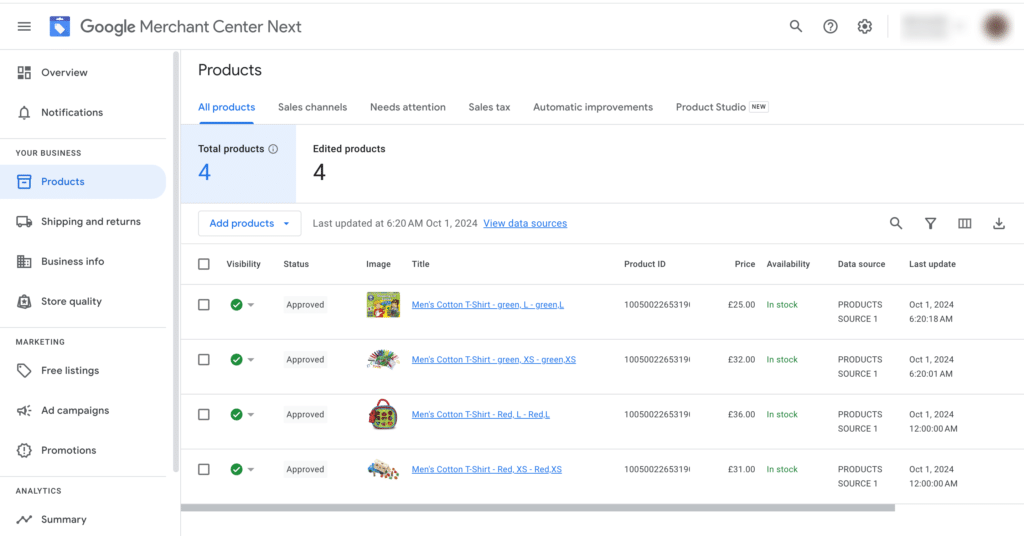
Merchant Center has moved product-issue management toward Products → Needs attention. This page shows affected products, issue details, and business impact, including lost click potential.
Where to find product issues
Open Products, then select Needs attention. Google’s documentation explains that this is where merchants can review product-level issues and prioritize fixes. Google’s issues documentation provides the full detail.
What “lost click potential” means
Lost click potential is Google’s estimate of the traffic an issue may be costing. Use the Prioritized fixes toggle to focus on medium- and high-impact issues first, then turn it off when you want to review every warning.
The five Merchant Center product statuses
Google currently uses five product statuses. Knowing the difference helps you decide whether an issue is blocking sales, limiting visibility, or simply still processing.
| Status | What it means | What to do |
|---|---|---|
| Approved | The product is eligible to show on Google. | Maintain accurate product data. |
| Limited | The product may show in limited countries, surfaces, or instances. | Check Needs attention for the restriction. |
| Not approved | The product cannot show. | Fix the listed issue and update the source data. |
| Under review | Google is reviewing the product after an update or review request. | Wait for the review outcome. |
| Processing | Google is processing a recent product update. | Avoid duplicate edits while processing completes. |
Google confirms these five statuses and notes that review times can vary by feature and issue type.
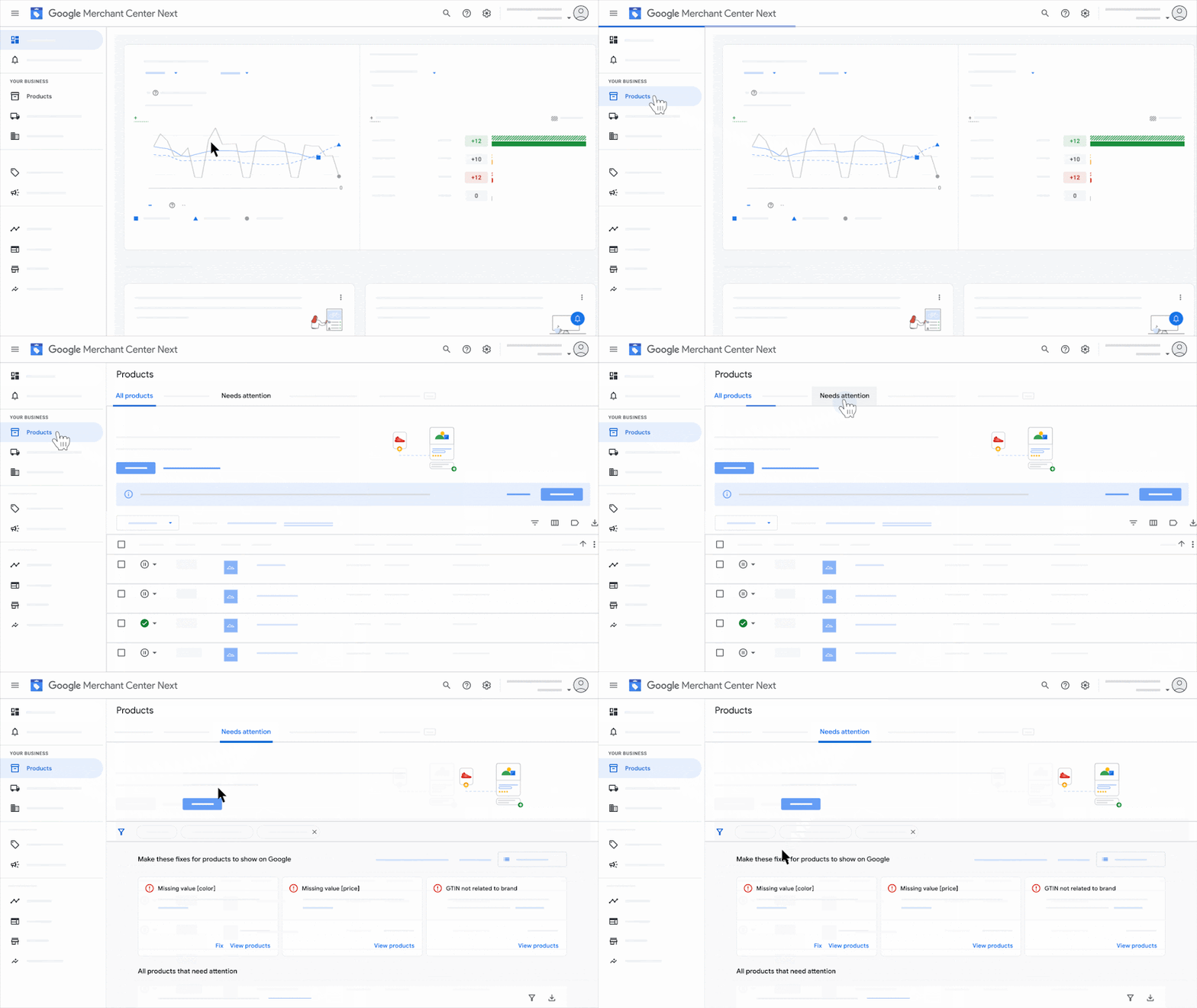
The Needs attention tab is your control room. One bad data pattern can affect many products at once, and lost click potential helps you decide which pattern to fix first.
Older guides may still reference a Diagnostics tab. If your account shows a similar view, use it to reach the same product-level issue details. Interfaces change, so always confirm the current screen inside your own Merchant Center account.
Why approval rate hides real feed damage
A high approval rate does not always mean your feed is healthy. Products can remain approved while carrying data-quality defects that reduce matching, eligibility, or performance.
Approval rate vs. defects per thousand
Approval rate only measures blocked products. It does not measure warnings, limited eligibility, weak identifiers, poor titles, or data mismatches that Google may still serve.
What the July 2026 audit found
One July 2026 third-party audit covered five live accounts and 11,107 products. Only 21 products were disapproved, or 0.19%. However, the same audit found 848 data-quality defects that Google flagged and served anyway.
In that sample, defective-but-served products outnumbered blocked products by roughly 40 to 1. Treat this as directional evidence from a small sample, not a Google benchmark.
A clean approval rate can still hide hundreds of products with data-quality defects.
Why “Limited” products still cost revenue
A second audit from the same team reviewed 7,170 products and found 1,133 issue rows. Only 42 rows blocked a sale, while the rest were warnings, information notes, or defects that degraded performance.
The audit also reported that only 21.9% of issues sat in the feed layer a tool could directly fix. The remainder required changes in the store, developer work, or a platform-level decision.
Other third-party benchmarks point in a similar direction. A scan of 496,603 products found an average feed quality score of 44 out of 100, while one agency reports that many disapprovals trace back to a small set of recurring feed errors. Treat these figures as practitioner observations, not universal guarantees.
Once your feed is clean, compare performance against our profit-adjusted ROAS benchmarks to understand how much room the account has.
The Merchant Center errors that cost the most clicks
These are the error patterns we see most often in client accounts, what they mean in plain language, and where the real fix belongs.
| Error you will see | What it really means | Where to fix it | Who owns it |
|---|---|---|---|
| Missing value [gtin] | No valid barcode data. Google cannot reliably match the product to its catalog. | Product source or feed rules | Store admin |
| Mismatched value [price] or [availability] | The feed and landing page disagree. | Store, app, or structured data | Developer |
| Website needs improvement | Google sees trust or experience problems on the website. | Website and Merchant Center settings | Agency with developer |
| Misrepresentation | Google has lost trust in account or site signals. | Account and website together | Agency |
| Image quality issue | Images violate quality or size requirements. | Product images | Store admin |
| Missing shipping or tax information | Google cannot calculate the complete cost or delivery details. | Merchant Center settings | PPC manager |
| Policy violation on a restricted item | A restricted product can create product-level disapprovals and may contribute to account-level enforcement. | Product catalog | Store admin |
Missing or invalid GTIN
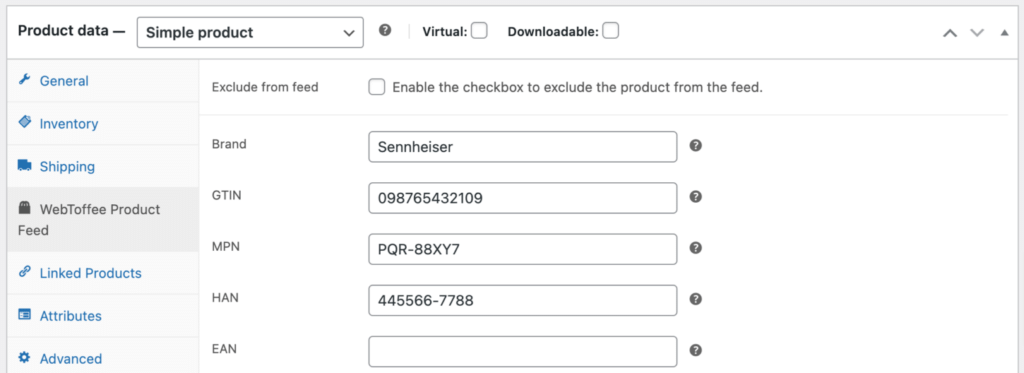
A valid GTIN helps Google match your offer to the correct product and search queries. Missing, reused, or invented GTINs can weaken matching and create disapproval risk. Google specifically warns merchants not to make up or create new GTINs.
Mismatched price or availability
Your feed price, landing-page price, sale price, and structured data must agree. If they do not, Google may limit eligibility or apply preemptive item disapproval.
Image quality and size issues
Google began warning merchants about undersized product images in 2026. Enforcement of the new 500 × 500 pixel minimum begins January 31, 2027.
What is preemptive item disapproval (PID) in Merchant Center?
Preemptive item disapproval, or PID, is Google’s way of blocking products before customers see a wrong price or unavailable item. It usually happens when Google expects a mismatch between feed data, the landing page, and structured data.
Why Google issues PID disapprovals
Google says PID occurs when price or availability does not match between product data and website landing pages. To protect shoppers, Google may disapprove products likely to violate requirements.
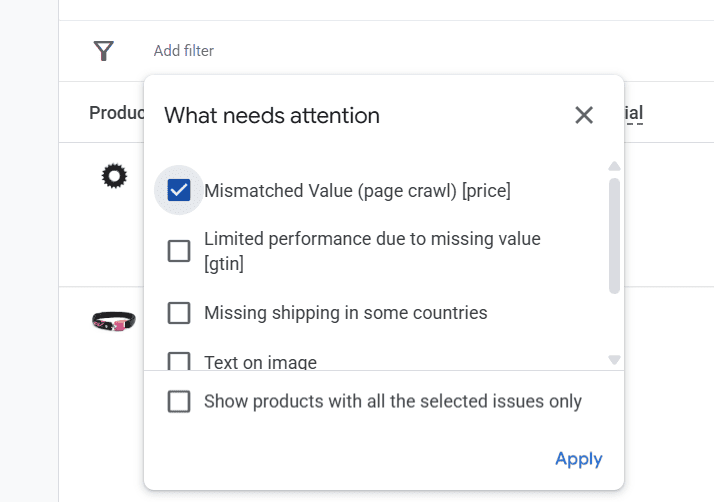
How to fix a PID price or availability mismatch
- Compare the feed value, landing-page value, and structured-data value.
- Correct the mismatch in the store, app, PIM, or markup, not in the Merchant Center edit screen.
- Allow Google to reprocess the data. Changes can take 24 to 72 hours to reflect on the Needs attention page.
- Request a manual review only if items remain stuck after reprocessing.
Why PID issues can affect similar SKUs
In our experience, a returning PID usually means the source data is still inconsistent somewhere. Treat the first PID as a catalog-wide data-quality signal, especially if the same price, sale-price, or availability rule affects multiple products.
Why Merchant Center errors come back after you fix them
You cleared the error, then it returned days later. This usually means the correction was made in the wrong layer of the product-data workflow.
Manual Merchant Center edits get overwritten
A fix typed directly into Merchant Center can disappear after the next feed fetch. Use manual edits only as a short-term stopgap while you correct the source data.
Automatic item updates only cover certain fields
Automatic item updates can help correct price, sale price, availability, and condition using website structured data. They supplement regular feed updates; they do not replace them.
They also do not fix missing GTINs, weak titles, policy violations, shipping gaps, or account-level trust issues.
JavaScript-rendered structured data can create mismatches
If your theme or plugins render product schema through JavaScript, test the final rendered HTML, not just the page source. Broken or inconsistent structured data can conflict with feed values and contribute to price or availability issues.
Fix errors at the source

Fix the data where it is born, not where it is displayed.
Every permanent fix should go into the system that creates the data: your ecommerce platform, PIM, feed rules, or structured data. Our feed optimization guide covers that source-side setup in more depth.
How to recover from a Merchant Center misrepresentation suspension
A misrepresentation flag is not automatically an accusation of fraud. It usually means Google has lost confidence in signals across your account, website, or product data.
Fix trust signals before appealing
Review business identity, policy pages, checkout, refund handling, contact details, feed accuracy, and site experience. Google says that for most violations it sends a warning email with 7 or 28 calendar days to fix the issue, although egregious violations may not receive a warning.
Check linked Google Ads accounts
A suspended linked Google Ads account can complicate a Merchant Center review. Check account connections before requesting a review.
Request one review, then wait
After corrections are live, request one review and allow time for processing. Changes can take 24 to 72 hours to reflect in Needs attention, and reinstatement timelines vary by issue type and account history.
Keep corrective changes permanent
Account and domain history can affect future reviews. Keep the fixes in place, monitor the account after reinstatement, and avoid repeating the same catalog or policy mistakes.
Emergency protocol for mass Merchant Center disapprovals
If your best sellers suddenly stop serving, use this sequence instead of changing values one by one.
Step 1: Check Google’s platform status
Check the Google Ads status dashboard first. If there is a platform incident, your priority is communication, not repair.
Step 2: Export and group errors
Open Products → Needs attention, export the issue list, and group rows by exact error string. Most mass events compress into a few repeatable patterns.
Step 3: Fix the dominant error pattern
Fix the pattern at its source. Do not edit hundreds of products manually inside Merchant Center.
Step 4: Validate a sample before requesting review
Check a small group of affected products after reprocessing. Once the corrected pattern is stable, request one review if needed.
Step 5: Communicate a realistic timeline
Tell stakeholders that Google may take 24 to 72 hours to refresh diagnostics and that review timelines vary by issue type and account history.
Merchant Center error prevention checklist
Merchant Center issues are easier to prevent than repair. Use this simple cadence to keep product data clean and reduce repeat disapprovals.
Daily checks
- Review new critical errors and disapprovals.
- Check feed fetch status and processing failures.
- Monitor high-revenue products in Needs attention.
Weekly checks
- Sample-check price, sale price, and availability across the feed and landing pages.
- Review new product variants, bundles, and out-of-stock items.
- Check whether any error pattern is growing.
Monthly checks
- Audit required attributes, GTINs, images, categories, and product types.
- Validate structured data on key product templates.
- Review shipping, returns, tax, and policy-page accuracy.
After platform or theme changes
Run a full regression check after a platform update, theme change, plugin update, checkout change, or catalog migration. These changes can silently affect structured data, price display, availability, and feed exports.
Merchant Center errors vs. feed optimization
Error control and feed optimization are related, but they solve different problems. Fix errors first; optimize performance once eligibility is stable.
| Focus | Main goal | Examples |
|---|---|---|
| Error control | Protect eligibility and prevent disapprovals | Price mismatch, GTIN issues, policy violations, shipping gaps |
| Feed optimization | Improve matching, clicks, and profitability | Titles, categories, images, custom labels, campaign segmentation |
Use this page to repair Merchant Center issues. Use our Google Shopping feed optimization guide to improve titles, attributes, segmentation, and ROAS after the feed is healthy.
When to hire a Google Merchant Center expert

Some issues are routine. Others need someone who has resolved recurring feed problems, policy flags, and account-level enforcement before.
Four situations that justify outside help
- A misrepresentation suspension.
- A PID pattern that keeps returning.
- A “website needs improvement” flag.
- A mass disapproval event during peak season.
Questions to ask before hiring an agency
- Can they report your current error count and defects per thousand?
- What do they monitor daily, weekly, and monthly?
- How do they respond to a mass disapproval?
- Who owns the feed rules and data after the contract ends?
- Do they ever invent identifiers to clear GTIN errors?
An agency that fabricates GTINs is not solving the problem. It is creating account-level risk on your domain. Google explicitly warns against making up or creating new GTINs.
Fixing Merchant Center issues is only half the job. Once the feed is clean, the account needs an owner who keeps it clean. That is what our Google Shopping team does for ecommerce brands.
Frequently Asked Questions:
How do I fix a Google Merchant Center suspension?
Fix trust signals first: business identity, policy pages, checkout, refund handling, and accurate feed data. Check linked Google Ads accounts, correct the issues, then request one review. For most violations, Google allows 7 or 28 calendar days to fix the issue, though egregious violations may not receive a warning.
How do I get approved for Merchant Center the first time?
Claim your website, complete business information so it matches your domain, publish real return and refund policies, and make checkout work end to end. Then submit a complete feed with accurate prices, availability, images, shipping, and tax data.
Why do Merchant Center errors come back after I fix them?
Because the fix was made in the wrong place. Manual Merchant Center edits can be overwritten by the next feed fetch, while automatic item updates only cover price, sale price, availability, and condition. Fix the source data in your store, PIM, feed rules, or structured data.
Is Google having a problem today, or is it my feed?
Check the Google Ads status dashboard first. If the platform shows an incident, wait and communicate internally. If the status page is normal, open Products → Needs attention and review the affected products.
How long does it take for Merchant Center errors to clear?
It depends on the issue and whether a review is required. Google may take 24 to 72 hours to reflect corrected data in Needs attention, while review timelines vary by issue type and account history.
Do Merchant Center errors affect free listings and Shopping ads?
Yes. Merchant Center issues can affect eligibility across Shopping ads, free listings, and other Google surfaces. A product that is limited or not approved may lose visibility even if your campaigns and bids are correct.
Merchant Center issues never fully disappear. Catalogs change, policies evolve, and new products introduce new data risks. Track defects per thousand, monitor lost click potential, and fix every issue at its source. That is how you keep Shopping eligibility stable.
Last updated on October 21, 2026. Merchant Center interfaces and policies change frequently, so we review this guide quarterly.